Sunday, March 5, 2017

GM Tech2 Program 2007 Cadillac CTS-V Key Fob


This is an instruction on how to program key fob to 2007 Cadillac CTS-V using a GM Tech2 Tech II scanner.

Model: 2007 Cadillac CTS-V
2007-Cadillac-CTS-V
The process…here you go…

The key to be programmed
key-to-be-programmed
Insert the key and ignition on
ignition-on
The gm tech 2 scan tool power on


In the main menu, go to Diagnostics

Select model: 2007 Cadillac D (DN) CTS-V passenger car
select-vehicle
passenger-car
cadillac
select-D
CST-V
Then go to Vehicle Control Systems
vehicle-control-module
communication
Read vehicle info
Engine type: (U) 6.0L V8 LS2
select-type
Go to Module Setup
module-setup
Then Remote control door lock receiver
remote-control-door-lock
Program key fobs…
program-key-fob
Two key fobs to be programmed
2-key-to-be-programmed
Tips of programming key fobs:
All key fobs must be programmed each time any one fob is programmed. To program,press and hold the LOCK and UNLOCK key fob buttons prompted by the TECH 2. Programming takes 15-30 minutes….
Tips-of-programming-key-1
Tips-of-programming-key-2
Programmed complete and test it’s working.
Done!

Tech2 Global TIS update SPS & add an ECM/ECU module

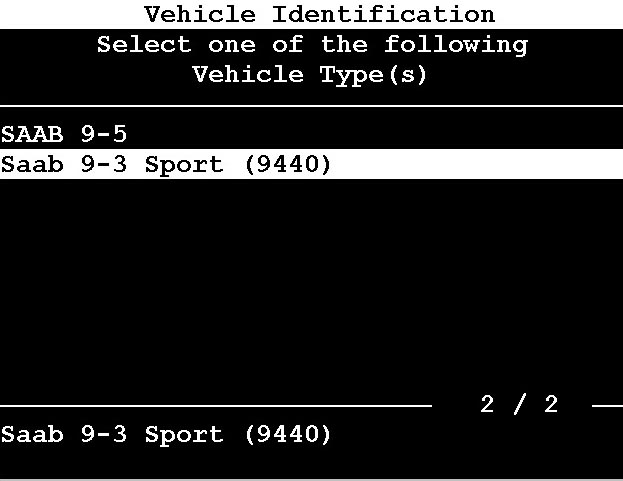
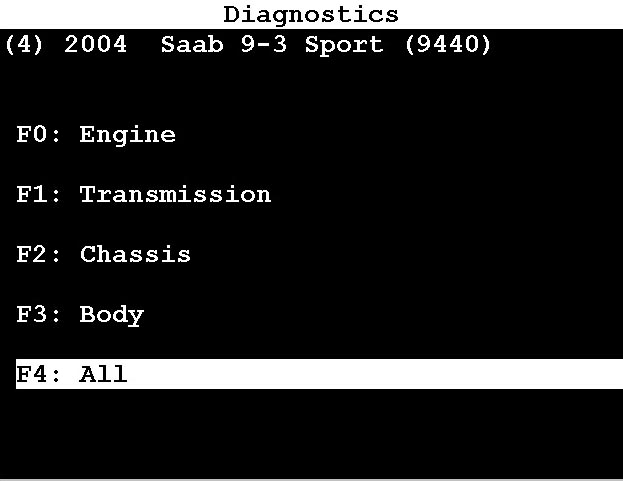
Here's a step-by-step instruction on how to use a Tech 2 scanner with GlobalTIS to do Service Programming System (SPS) update and add a ECM / ECU module to Saab 2004 9-3 (9440)


You need:

A HQ GM Tech2 scanner clone

Working GlobalTIS


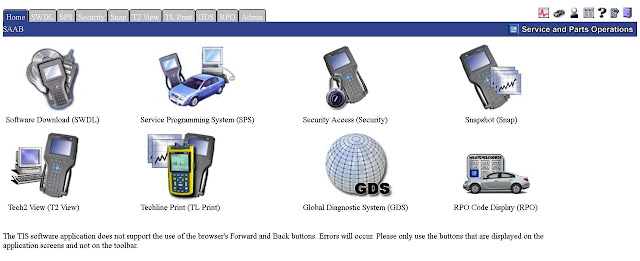
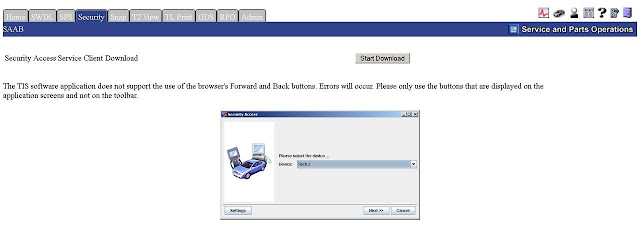
First you MUST get security access. This will launch a JAVA application and give you security access 1:

Go to Security


select device: tech 2


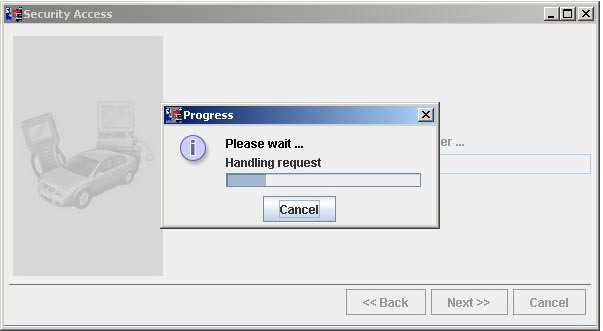
handling request


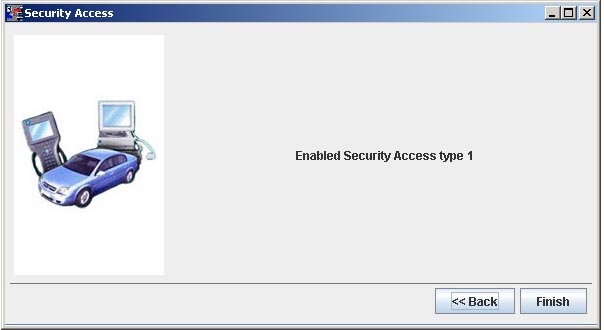
enabled security access type 1


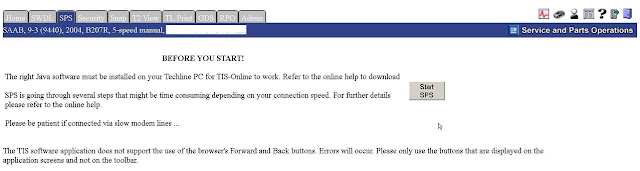
Now we'll need to head of to the SPS tab. Make sure you've closed the other applet.

Start SPS


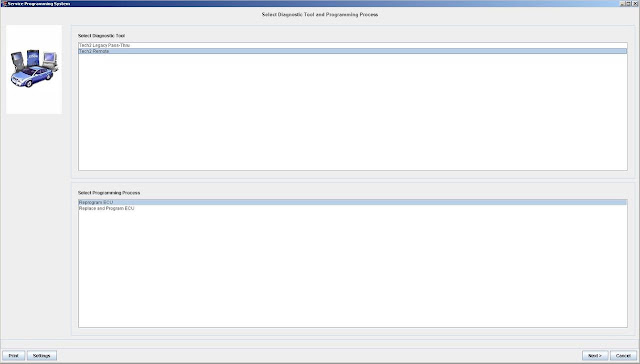
Very important here to select Tech2 remote. This will load the software on the 32MB PCMCIA card.
Also select Reprogram ECU and NOT replace.


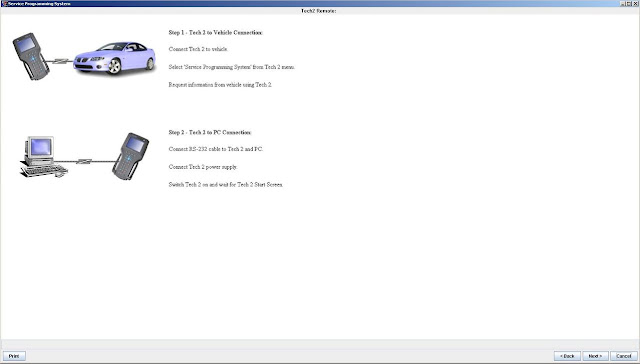
Tech 2 remote:

Step 1 - tech 2 to vehicle connection:

Connect tech 2 to vehicle

Select service programming system from tech 2 menu

Request information from vehicle using tech2

Step 2 - tech 2 to pc connection

Connect rs-232 cable to tech 2 and pc

Connect tech 2 power supply

Switch tech 2 on and wait for tech 2 start screen


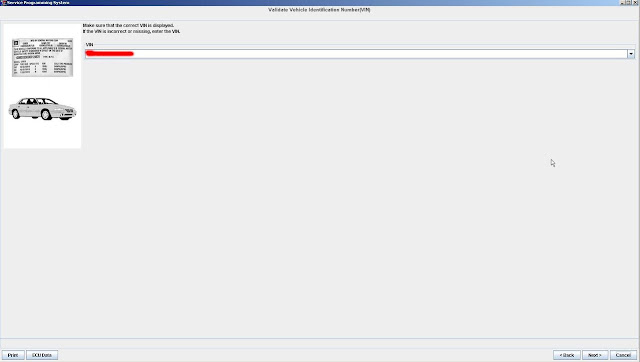
Make sure that the correct vin is displayed


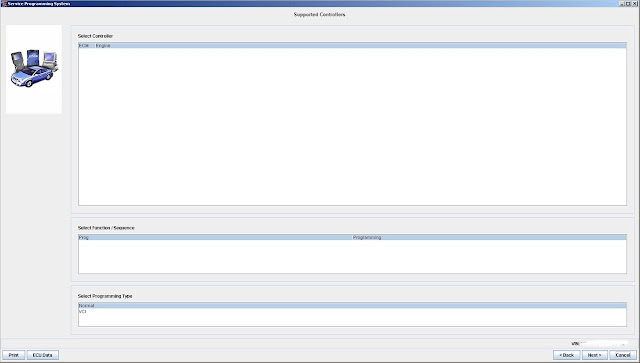
Select ECM, Prog, Normal


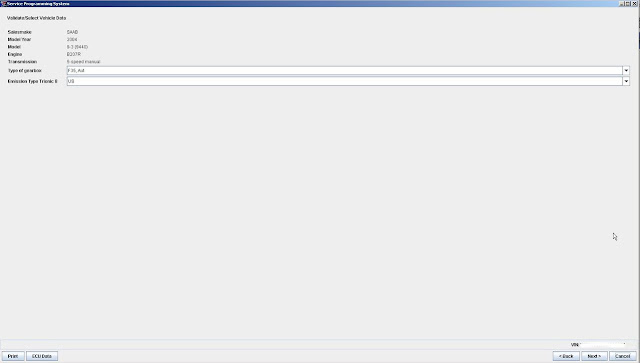
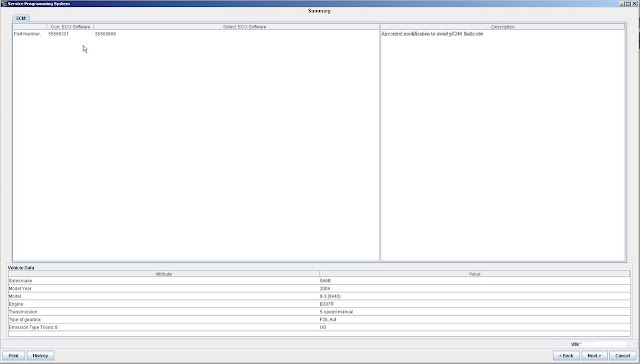
Validate select vehicle data:

Saab 2004 9-3 (9440) with engine: b207r, transmission: 5-speed manual, gearbox: F35, emission: US


This is where we see what version of the software is going to be loaded on the ECM. The the description field it will list the changes from the previous software versions.

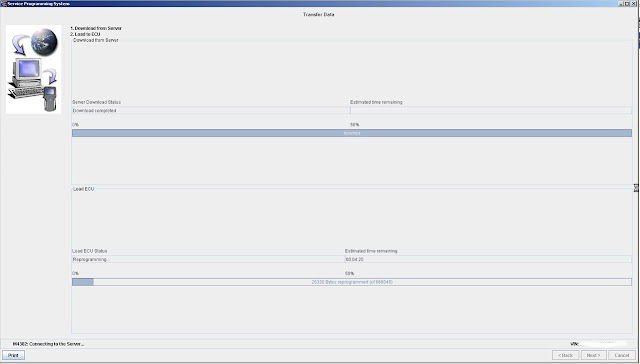
Total time about 4 minutes to load the software on the PCMCIA. Not too bad for a crappy old serial connection.


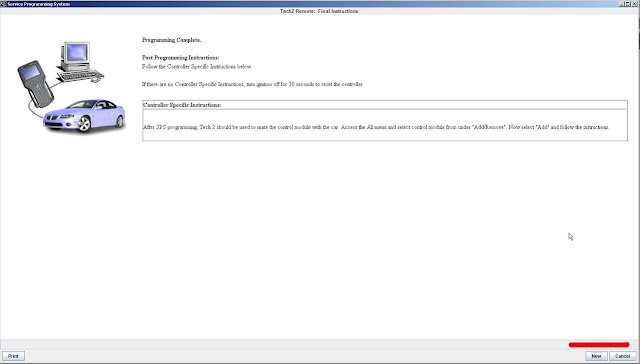
Controller specific instructions:

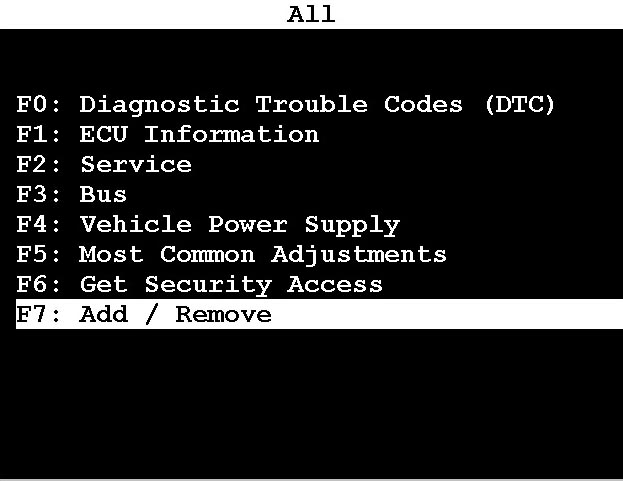
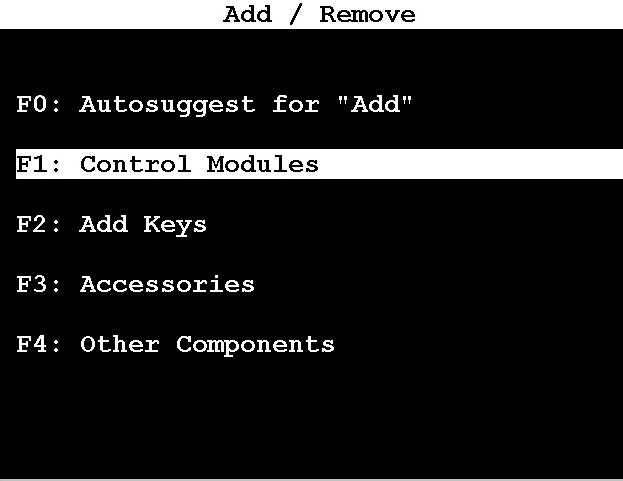
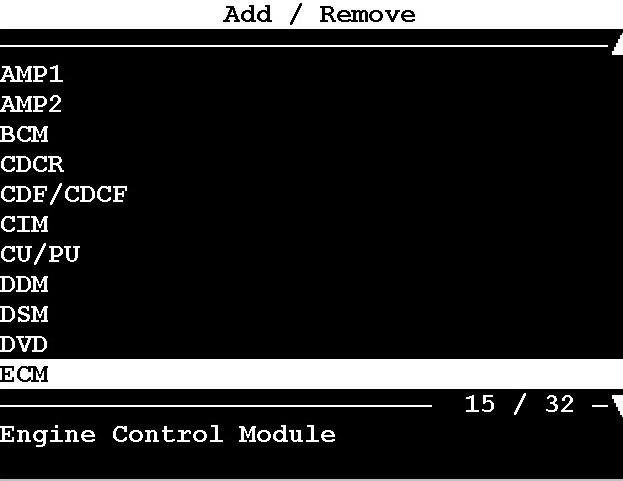
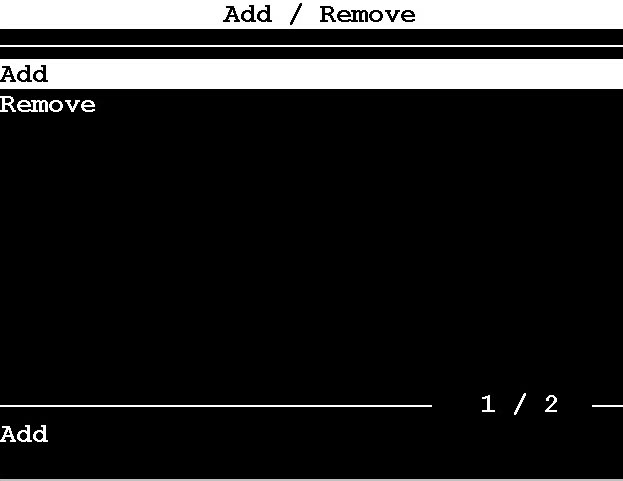
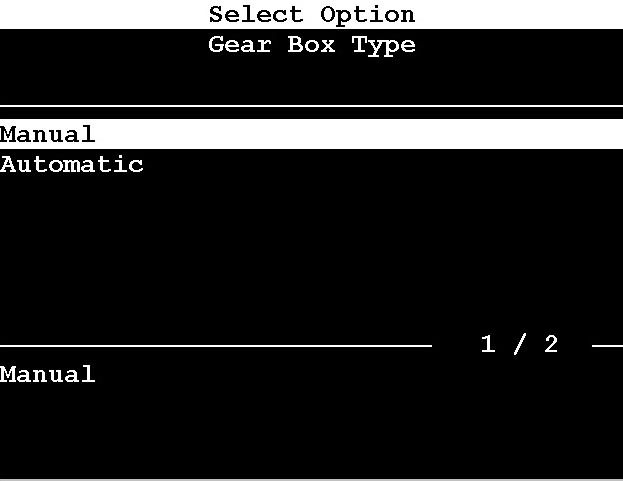
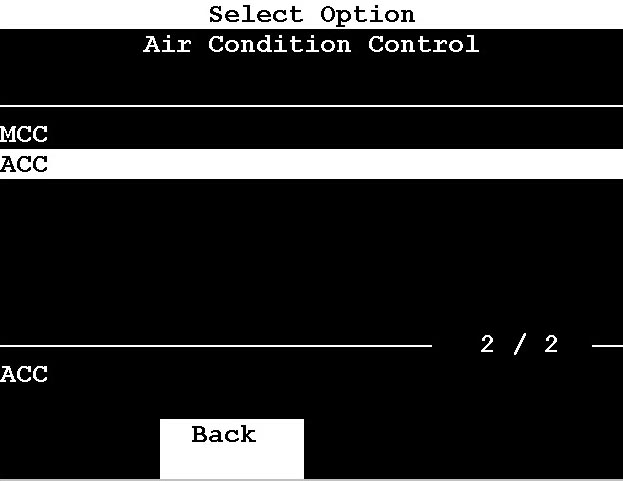
After sps programming, GM tech 2 should be used to mate the control module with the car. Access all the menu and select the control module from under “Add/Remote”. Now select add and follow the instruction


Now we can disconnect the laptop. The SPS is loaded on the card. Just make sure you do not reboot your Tech2 scanner! Leave it running. Hit exit if it's not already looking at the SAAB logo prompt.

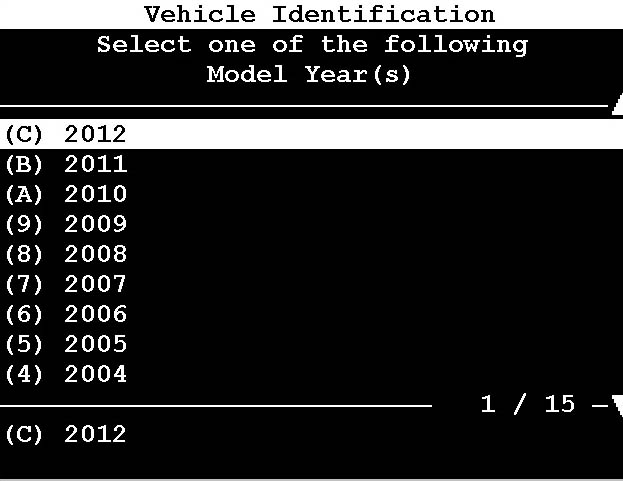
Select Saab 2004 9-3 (9440) to add engine control module (ECM)


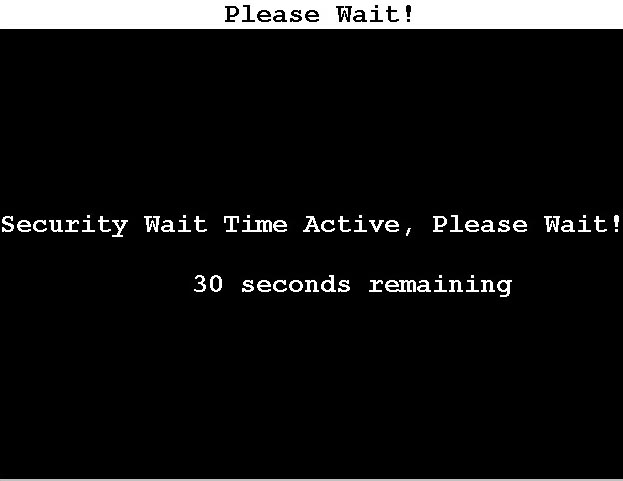
Here is where is checks security access. You won't go any further if you didn't get at least access 1.


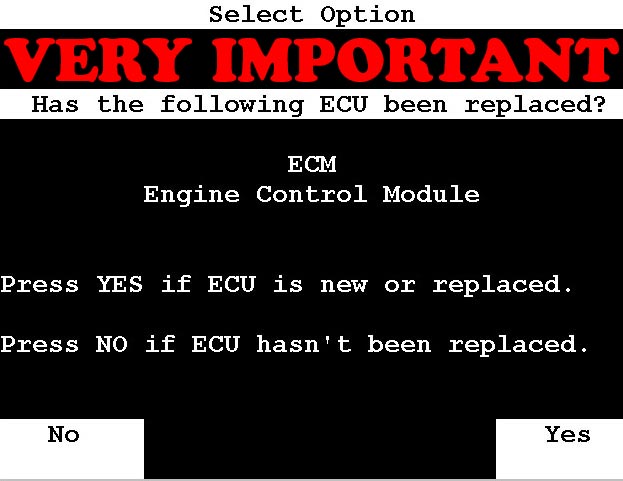
Select "NO!" We want multiple ECUs so we can swap and tune to our hearts content.
Also, our old ECU won't work if you hit yes. So if you have a tune on it, you'll lose it when you're forced to reprogram it. You've been warned.
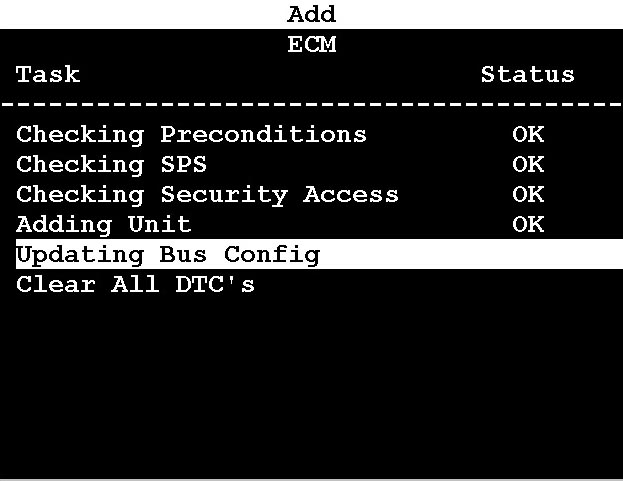
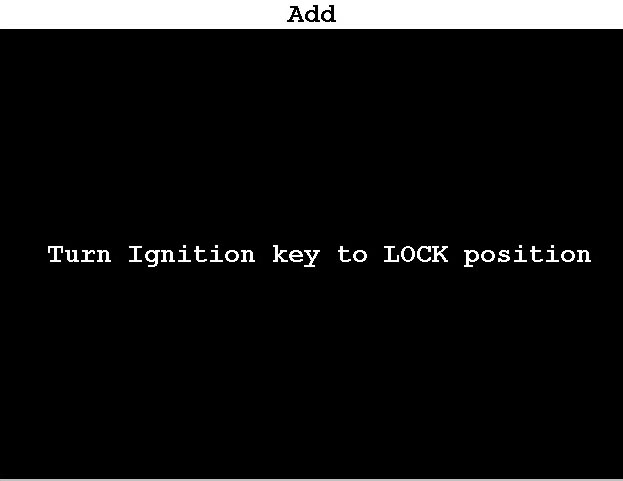


OK- That's pretty much it.

Thursday, February 16, 2017

Relearn 2012 Chevy Cruze TPMS by EI-50448 TPMS Activation Tool

El-50448 Auto TPMS Activation Tool OEC-T5 is made to work on GM Series vehicles. Here is the El-50448 instructions on resetting 2012 Chevy Cruze tire pressure monitor sensors. Very easy to operate.

Purpose:
To relearn 2012 Chevy Cruze TPMS

Device used:
El-50448 Auto TPMS Activation Tool
Step 1: Get in car TPMS learn mode
How to get into Chevy Cruze TPMS mode?
*WITH STANDARD IGNITION:1. Set parking brake.
2. Turn ignition to ON/RUN (engine off)
3. Use the MENU button to select the VEHICLE INFORMATION menu in the DRIVER INFORMATION CENTER (DIC).
4. Use thumbwheel to scroll to the Tire Pressure menu item screen.
5. Press the SET/CLR button to begin sensor matching process. A message requesting acceptance of the process should display.
6. Press the SET/CLR button again to confirm selection.
*WITH PUSH-BUTTON START:
  1. Press and hold the push button start until the vehicle is in accessory mode. Note: on Cadillac models you will know when you are in accessory mode the Cadillac emblem appears on the DIC.
  2. Press the MENU button located on the turn signal lever until “VEHICLE INFORMATION MENU” is displayed.
  3. Once you are in the VEHICLE INFORMATION MENU, use the ^ v on the turn signal level until the DIC displays the vehicle’s tire inflation pressure and positions.
  4. Press and hold the button located on the end of the turn signal level until “Are you sure that you want to relearn? YES or NO” is displayed.
  5. Use the ^ v on the turn signal lever to highlight YES. Once YES is highlighted, press the button located on the end of the turn signal lever. The horn will chirp, “Tire Learning Active” will be displayed on the DIC, and the left front turn signal will be illuminated.
Tire Learning Active 1
Tire Learning Active 2
Tire Learning Active 3
Step 2: Get out of the car and use EI-50448 OEC-T5 to close to each valve stem
Note: Beginning with the left front tire, Once the sensor has been activated, the horn will chirp and the right front turn signal will be illuminated. You can then turn the vehicle off to exit “learn mode.”
(Starting with Left Front tire -> Right Front -> Right Rear -> Left Rear)
 Left Front tire
Right Front
tire-pressure
Done! El-50448 TPMS relearn tool relearn 2012 Chevy Cruze TPMS sensors successfully!

Related search items:
El-50448 for sale
El-50448 Canada
El-50448 TPMS
El-50448 compatibility
GM TPMS relearn tool